
I see most of the people scared of computers and wiring. even was I. But know that nothing is complicated. this simple tutorial builds your pavilion!
1. choose the processor
choosing the processor is a hard task(for me!). there are two main manufacturers you can go with. they are Intel and AMD. Intel is the most famous company. Its processors are almost superb! But even AMD works well.the problem is AMD is not so famous as intel. But what I advice you is if you want the quality(rather Brand name!), choose Intel. But if you want economy(if you are not willing to spend much bucks but want amazing performance) choose AMD. Intel has i3, i5, i7 processors. and AMD has Fx series, phenom series and athleton series. I have preffered AMD over Intel because there is no difference between the processors and AMD processors are dead cheaper and come with same warrenty. after choosing the brand, the next thing you have to choose is the number of cores. If you need your PC for Gaming and multi tasking(like video conversion) just go for atleast quad core processor or even greater. if its for simple purposes, go with a less processor. after all my 6 month research, i found that AMD fx quad core black edition is the most powerful processor(the power of the processor is expressed in GHz.) the following table gives you the details including price.

2. select the mother board
this step is not so complicated! its very easy. Now you have chosen the processor. If its Intel, don't even think of buying mother board of other brand! Intel genuine mother boards are the best compatible and deliver the best speed. If you have chosen AMD(most probably you might have chosen it!), AMD doesn't have its own mother board. just go for Gigabit or something like that. there are mother boards compatible for different processors in AMD. what i have got is Gigabit. There is nothing different in the prices of mother boards. they are all around 4000 INR to 6000 INR(just convert them to your currency.)
3. The RAM
RAM stands for Random Access Memory. it is useful to store temporary files of your computer. the more is the size of the RAM, the more files can be stored. the storage of this files fastens the computer. the stored files are gone after computer is restarted. If you want the computer for gaming, just use atleast 4GB RAM. RAMs are also available with 2 to 12GB space. the 4 GB ram costed me around 2000 INR.
4. Graphics card
you can unleash the power of gaming with the help of a graphics card. there are two major manufacturers of graphics card. 1. AMD radeon and 2. Nvidia. the graphics memory also decides the gaming experience. they come in 1GB, 2GB etc., sizes. prefer Nvidia to AMD and 2GB to 1GB. the 1GB one costed me 1800 INR.
5. Hard drive
hard drive is truly selected as per youe need(rather more than what you need.) Hard drives are available in 500GB, 1Tb and 2 Tb sizes. Seagate is a famous company. the 1TB one costed 4,800 INR.
6. optical drive
optical drive is an important means for the transfer of data. there are Bluray drives and DVD drives. I preffered Bluray. there are many manufacturers like LG, Samsung etc., But LG is the cheapest one. the LG bluray costed me 6200 INR.
7. cabinet
I need not describe this. you can choose this as per your choice. there are many local companies. the one I chosen costed me 2000 INR.
You have successfully completed understanding parts of CPU.
8. Monitor
there are various brands that manufacture monitors. I already had an LG monitor. it costed me 9000 INR.
9. speakers
As per your need and necessacity, you may or may not buy speakers. they costed me around 450 INR.
10. SMPS
SMPS give the power to all the parts. its the most important one.it costed me around 1000 INR.
Congratulations, you are now done with the parts of computer. lets assemble it.
1. put the processor over the mother board and fix the exhaust fan.

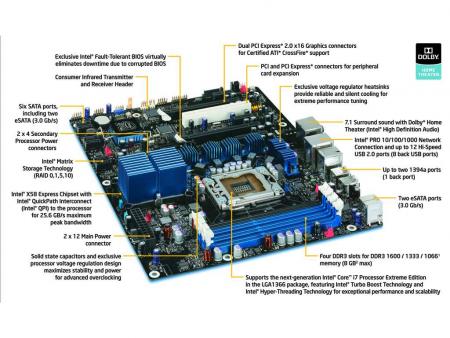
2. put RAM into the RAM slot


4. Fix the SMPS
5. give the SATA and Power connections
(SATA? SATA is a type of connection used by hard drives and opticle drives. just put the sata pin into the mother board sockets. and give the power connections from SMPS)
6. Close the cabinet.
Your CPU is ready connect to monitor and unleash the performance!!!
